Managing two cloud accounts doesn’t have to be a full-time headache—but for many, keeping Dropbox files in sync with Google Drive still feels like a unsolved puzzle.
If you’ve ever attempted a manual migration, you already know the drill: download your entire Dropbox folder locally, then upload it all over again to Google Drive. Despite being two of the most widely used cloud storage tools out there, Dropbox and Google Drive operate in their own silos, with no native bridge between them. That manual hop eats bandwidth and invites mistakes — a single dropped connection can leave half your library stranded on the wrong side.
Here’s the good news: there’s a cleaner path, and it skips the local download entirely.
Why You Might Want to Backup Dropbox to Google Drive
Remote work pushed a lot of teams onto Dropbox, while personal lives gravitated toward Google’s ecosystem. Over time that split gets messy: client deliverables sit in one place, family photos in another. A periodic backup bridges the gap without forcing you to abandon either service.
- Extra protection against data loss — Keeping a second copy on Google Drive shields you if a Dropbox sync error ever wipes an important folder.
- Free up paid Dropbox space — Google Drive’s free tier lets you offload older archives without upgrading your Dropbox plan.
- Pull scattered files together — Many of us started projects on Dropbox years ago; merging them into Google Drive puts everything in one searchable spot.
- Share more easily with Google contacts — Drive links open instantly for anyone on a Google account, no extra invites required.
Before you begin, take a minute to estimate how much data you’re moving. A 200GB media library behaves very differently from 5GB of documents, and the destination needs room for both.
The Best Way to Backup Dropbox to Google Drive – MultCloud
The most dependable method is to lean on a cloud management platform, MultCloud, that links both services and moves data between them directly. A solid Dropbox to Google Drive migration tool handles the handoff in the background, so you never touch a single local file or worry about disk space mid-transfer.
- Direct cloud-to-cloud transfer — No local download step, which saves hours on large photo and video libraries.
- Scheduled backups — Run daily, weekly, or monthly jobs so your Google Drive copy always stays current.
- Filter by file type — Move only PDFs and images, or skip bulky video folders to control what lands on Drive.
- Email notifications — Receive a message the moment a transfer finishes or hits a snag.
- 30+ supported clouds — Beyond Dropbox and Google Drive, the same tool manages OneDrive, iCloud, Box, and more.
- Encryption in transit — Files travel through protected channels, keeping credentials and content private.
The free tier (5GB monthly traffic) covers everyday backups, and you only upgrade if you’re shuffling terabytes on a tight deadline.
How to Backup Dropbox to Google Drive in 4 Steps
A quick note before you begin: keep a steady internet connection, confirm your Google Drive has enough free space for the incoming files, and avoid deleting anything in Dropbox until the copy finishes completely.
Here is how to backup Dropbox to Google Drive in 4 steps with MultCloud:
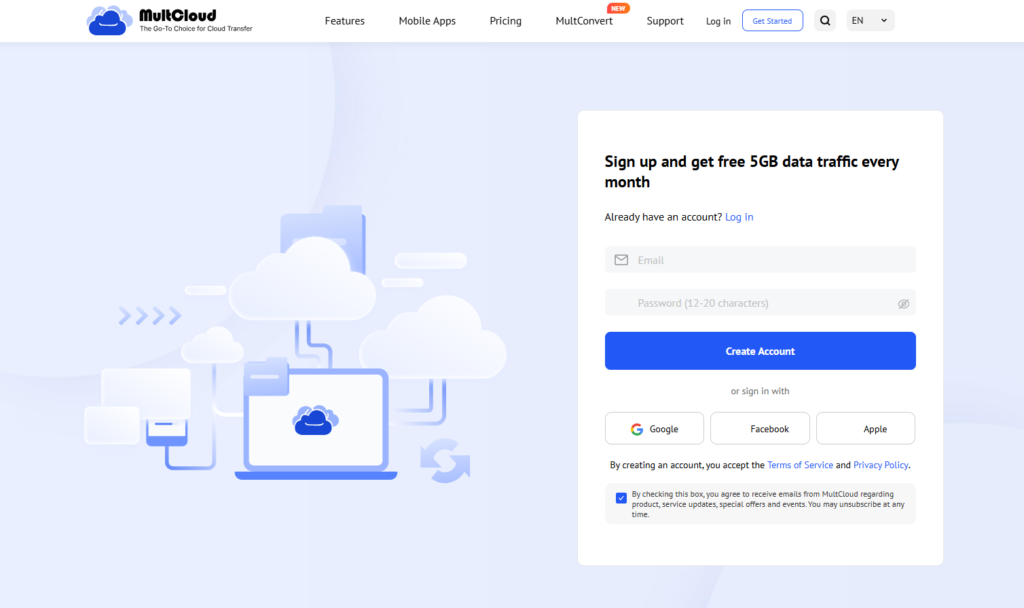
1. Sign up and log in — Visit the MultCloud website and create a free account or log in. Everything runs in the browser, so there is nothing to install on your machine.
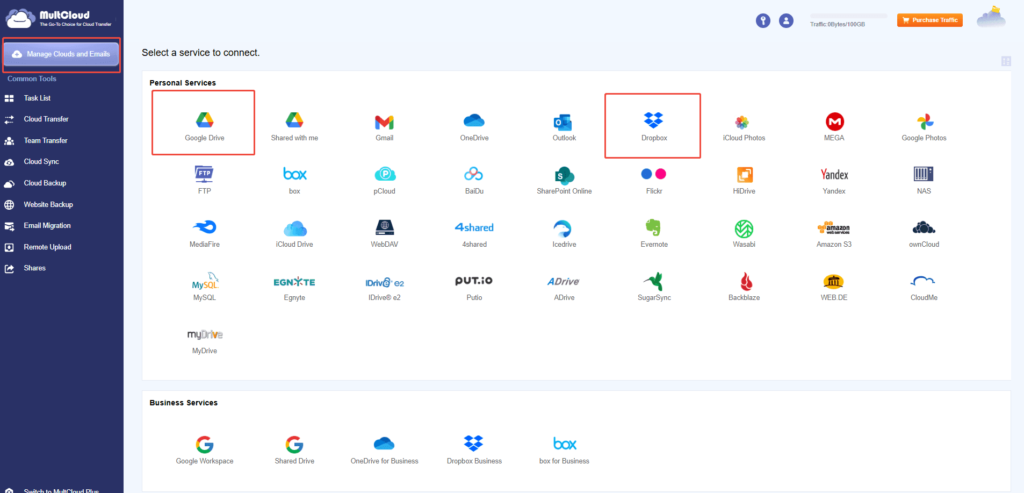
2. Add Dropbox and Google Drive accounts — Click “Manage Clouds and Emails” on the left sidebar, then authorize Dropbox and Google Drive by signing in to each and granting access. Both show up as drives in your left sidebar.
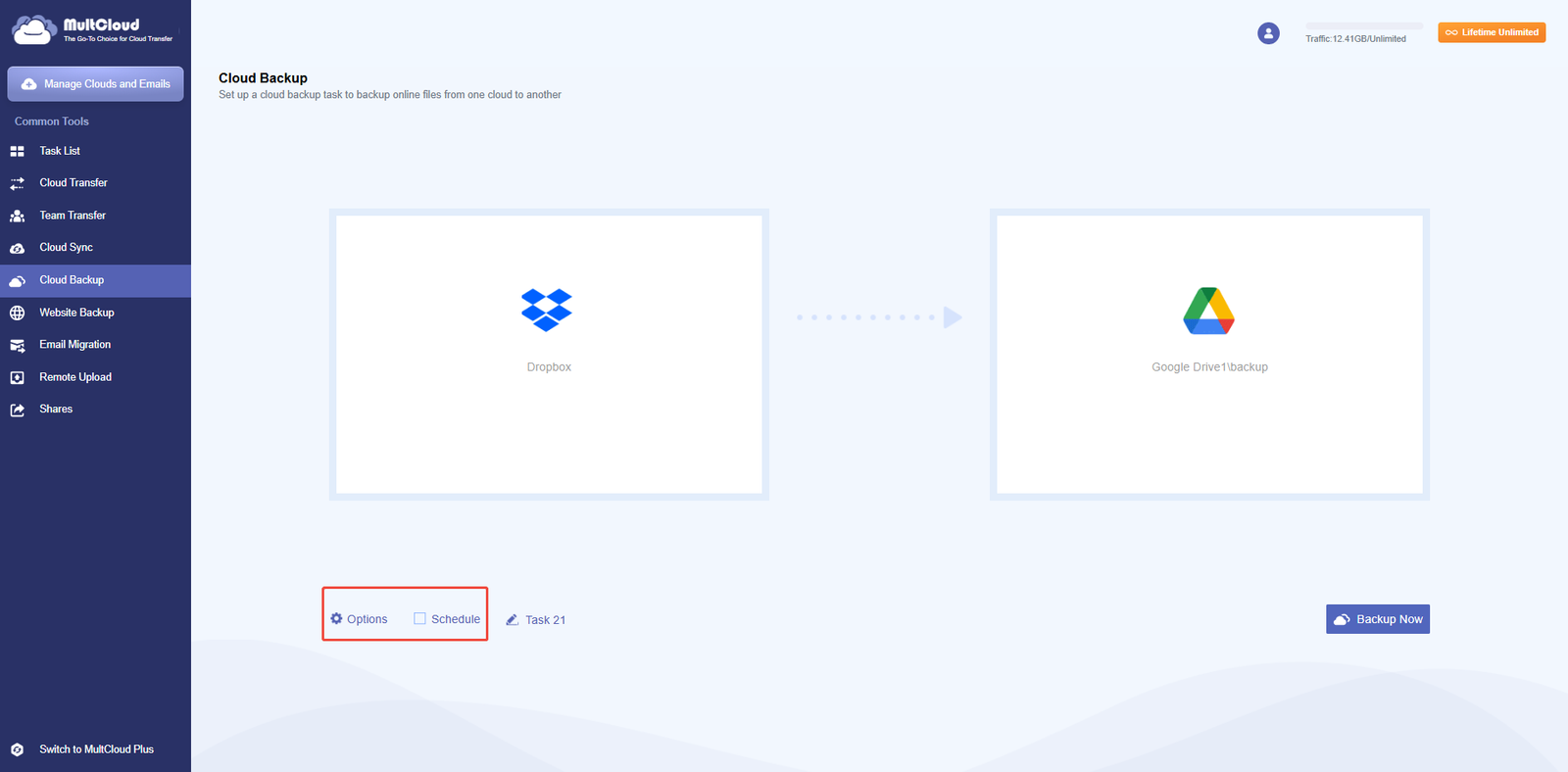
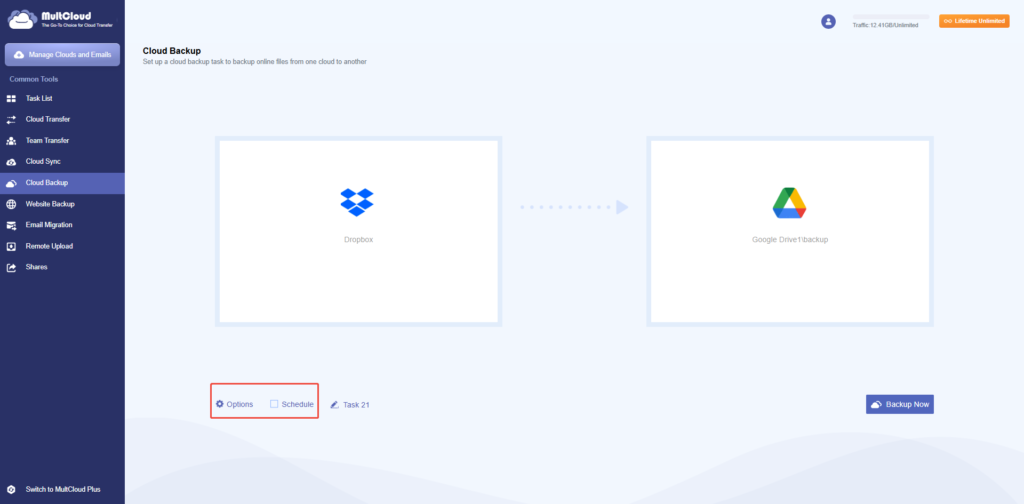
3. Create a Cloud Backup task — Open the “Cloud Backup” tab, choose the Dropbox folder you want to back up as the source, and pick a Google Drive folder as the destination. Switch on schedule or filtering options if you need them.
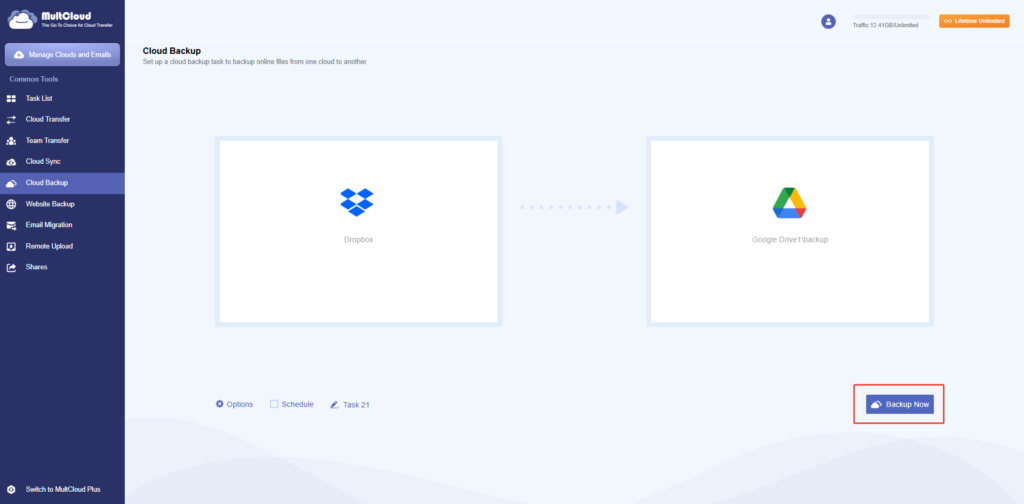
4. Start the Dropbox to Google Drive backup — Hit “Backup Now” to run it immediately, or save the task with a schedule for hands-off, repeating backups you can forget about.
While the task runs, you can close the browser tab and walk away — progress continues on the server side and resumes even if your laptop sleeps. The dashboard keeps a live log of every file moved, so you always know exactly what landed on Google Drive.
Tips:
- With cloud to cloud backup of MultCloud, you can transfer files from Dropbox to Google Drive without downloading, it runs on the MultCloud’s server, even if you close your computer.
- Turn on email alerts to learn when a job ends, use file filtering to skip temporary files, and schedule recurring backups so the copy never goes stale.
Want the full picture of how the migration engine works under the hood? The cloud-to-cloud migration tutorial walks through every advanced setting, from bandwidth limits to filter rules.
Conclusion
Backing up Dropbox to Google Drive no longer means a long night of downloading and re-uploading. With a direct cloud-to-cloud approach, your files arrive safely on Google Drive in a fraction of the time. Once the connection is set up, repeat the backup whenever you like — or let it run on automatically and stop thinking about it.